
Slow Windows 11 laptops are usually caused by resource bottlenecks—not aging hardware—and by diagnosing whether CPU, RAM, storage, or startup overload is the issue, you can apply targeted fixes that dramatically restore performance without replacing your device.
If your Windows 11 laptop is slow, freezing, or lagging, the fastest way to fix it is to identify the bottleneck using Task Manager, disable unnecessary startup apps, reduce background resource usage, and upgrade storage to an SSD if needed. Most laptops slow down because of software overload and storage limitations—not because they’re too old.
The real problem is invisible resource congestion. Startup programs quietly consume memory. Background processes drain CPU power. Mechanical hard drives delay every operation. Over time, these hidden inefficiencies compound until your system feels unusable.
According to Microsoft itself confirms that startup apps, background activity, low storage space, and malware are among the main causes of slow Windows performance, and disabling startup apps, freeing disk space, and removing unused programs can significantly improve speed.
Table of Contents
Key Takeaways
- Most slow laptops are caused by startup overload, insufficient RAM, or slow HDD storage.
- Disabling startup apps is the fastest software fix.
- SSD upgrades deliver the biggest performance improvement.
- Task Manager reveals exactly what is slowing your laptop.
- Software fixes can dramatically improve performance without buying new hardware.
- Upgrading RAM and SSD often makes laptops feel brand new.
Step 1: Diagnose What Is Slowing Down Your Laptop (Most Important Step)

Before fixing anything, you must identify the bottleneck. Otherwise, you’re treating symptoms—not the cause.
Press:
Ctrl + Shift + Esc → Open Task Manager → Performance tab
Intel explains that if your RAM, CPU, or disk usage consistently exceeds about 80%, your system is overloaded and performance will slow down significantly.
Bottleneck Diagnosis Framework
| If this stays high | Your real problem |
| CPU at 80–100% | Too many background apps |
| Memory at 80–100% | Not enough RAM |
| Disk at 100% | Slow HDD or disk overload |
| Startup impact high | Too many startup programs |
Once you identify the bottleneck, fixing performance becomes simple and targeted.
Step 2: Disable Startup Programs (Highest Impact Fix)
Startup apps launch automatically and consume system resources immediately.
Microsoft officially recommends disabling unnecessary startup apps because they increase background activity and slow boot performance.
How to Disable Startup Apps
- Open Task Manager
- Click Startup tab
- Right-click unnecessary apps
- Click Disable
Disable apps like:
- Spotify
- Teams
- Discord
- Zoom
- Adobe services
This reduces CPU and RAM usage immediately.
Step 3: Free Up Disk Space and Remove Unnecessary Apps
Low disk space slows your laptop because Windows needs free space to operate efficiently.
Microsoft confirms that freeing disk space and removing unused apps improves performance and reduces background load.
Steps:
- Settings → System → Storage
- Remove temporary files
- Uninstall unused programs
This improves responsiveness quickly.
Step 4: Upgrade HDD to SSD (Biggest Performance Improvement)
This is the most powerful fix for slow laptops.
Mechanical hard drives are slow because they use moving parts. SSDs are much faster because they use flash memory.
Microsoft’s built-in Drive Optimizer exists specifically to improve read/write access speed, showing how storage speed directly affects system performance.
Example comparison:
| HDD | SSD |
| Boot time: 2–3 minutes | Boot time: 10–20 seconds |
| Slow app loading | Instant app loading |
| High disk usage | Smooth performance |
This upgrade alone can make your laptop feel new.
Step 5: Close Background Apps and Reduce RAM Usage
Running too many apps consumes RAM.
Intel recommends freeing up RAM or upgrading memory when your system is overloaded, as insufficient RAM is a major cause of slow performance.
To fix:
- Open Task Manager
- Close unused apps
- Reduce browser tabs
Step 6: Scan for Malware
Malware can slow your laptop significantly.
The U.S. Federal Trade Commission confirms that malware can cause computers to slow down, freeze, crash, and consume system resources without your knowledge.
To scan:
Settings → Windows Security → Virus & Threat Protection → Run scan
Step 7: Update Windows and Drivers
Updates improve performance and fix bugs.
Keeping Windows and drivers updated resolves slowdown issues and improves system efficiency.
Update:
Settings → Windows Update → Check for updates
Step 8: Upgrade RAM (If Needed)
RAM determines multitasking performance.
Microsoft and hardware manufacturers recommend upgrading RAM if your system struggles with memory usage. More RAM improves responsiveness and prevents freezing.
Recommended:
- 8GB minimum
- 16GB ideal
Step 9: Adjust Power Settings to Best Performance
Windows power settings affect CPU speed.
Microsoft recommends selecting Best Performance mode to allow your CPU to run at higher performance levels.
Steps:
Settings → Power → Power mode → Best Performance
Step 10: Remove Bloatware and Background Apps
Background apps slow performance.
Microsoft recommends disabling background apps to reduce resource consumption and improve performance.
Remove:
- Trial software
- Unused apps
- Manufacturer utilities
Step 11: Fix Overheating Issues
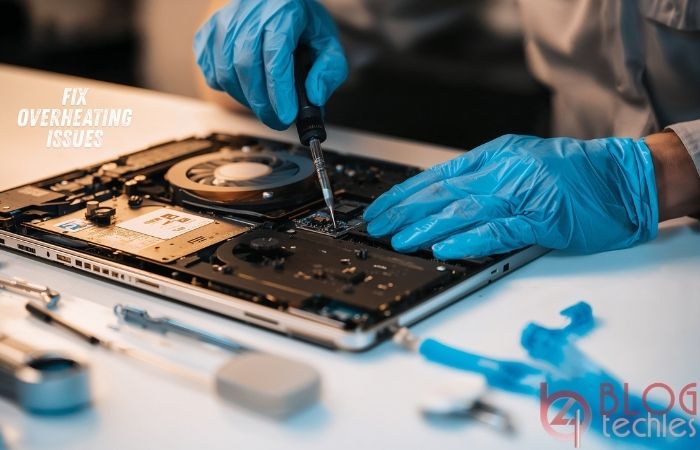
Overheating reduces CPU speed.
Intel explains that overloaded or overheated CPUs may require cooling improvements or hardware upgrades to restore performance.
Fix by:
- Cleaning vents
- Using cooling pad
- Improving airflow
Step 12: Reset Windows (Last Software Solution)
If your system is heavily overloaded or corrupted, resetting Windows restores performance.
This removes unnecessary software and restores optimal operation.
Conclusion
Fixing a slow Windows 11 laptop requires identifying and fixing the real bottleneck—not guessing randomly. Startup overload, low RAM, slow storage, malware, and background apps are the most common causes.
Microsoft, Intel, and security agencies all confirm that disabling startup apps, freeing disk space, removing malware, upgrading storage, and increasing RAM can significantly improve performance.
Most laptops don’t need replacement—they need proper optimization and targeted upgrades.
FAQ
Why is my Windows 11 laptop slow?
Because of startup overload, low RAM, disk bottlenecks, or malware. These consume system resources and reduce performance.
Does SSD really make laptops faster?
Yes. SSD improves boot speed, app loading, and system responsiveness dramatically.
How much RAM is enough?
8GB minimum. 16GB recommended for smooth performance.
Will resetting Windows improve speed?
Yes. It removes unnecessary apps and restores performance.
Do startup apps slow laptops?
Yes. Startup apps increase background resource usage and slow boot time.
Can malware slow laptops?
Yes. Malware consumes CPU, disk, and memory resources.
Should I upgrade laptop or replace it?
Upgrade SSD and RAM first. Replace only if CPU is outdated.
How long do laptops stay fast?
5–8 years with proper upgrades and maintenance.