
If you’re searching for how to reset network settings android, you’re likely facing problems like Wi-Fi not connecting, mobile data not working, or Bluetooth devices disconnecting unexpectedly. The good news is that resetting network settings is one of the safest and most effective ways to fix these issues.
Here’s the direct answer: to reset network settings on Android, go to Settings → System → Reset Options → Reset Wi-Fi, Mobile & Bluetooth → Confirm Reset. This restores all network configurations to default without deleting your personal data.
Many connectivity problems happen because of corrupted settings, software updates, or network conflicts. Resetting network settings clears those issues and gives your device a fresh start.
According to Google’s official Android Help documentation, resetting network settings restores Wi-Fi, mobile, and Bluetooth configurations and helps resolve persistent connectivity issues.
This guide explains everything you need to know—including when to reset network settings, what happens afterward, and how to do it safely.
Table of Contents
Key Takeaways
- Resetting network settings fixes most Android connectivity problems
- It removes saved Wi-Fi networks, Bluetooth devices, and mobile network settings
- It does NOT delete photos, apps, or personal files
- It is safer than a factory reset
- It is recommended by Android manufacturers for troubleshooting
What Does Reset Network Settings Do on Android?
Resetting network settings restores your device’s network configuration to its original default state. This removes all custom network configurations that may be causing connection problems.
What Gets Reset vs What Does Not
| Gets Reset | Does NOT Get Reset |
| Saved Wi-Fi networks | Photos |
| Wi-Fi passwords | Apps |
| Bluetooth pairings | Contacts |
| Mobile network settings | Videos |
| VPN settings | Messages |
| Network preferences | Personal files |
Your personal data remains completely safe.
Resetting network settings focuses only on connectivity configurations.
When Should You Reset Network Settings on Android?
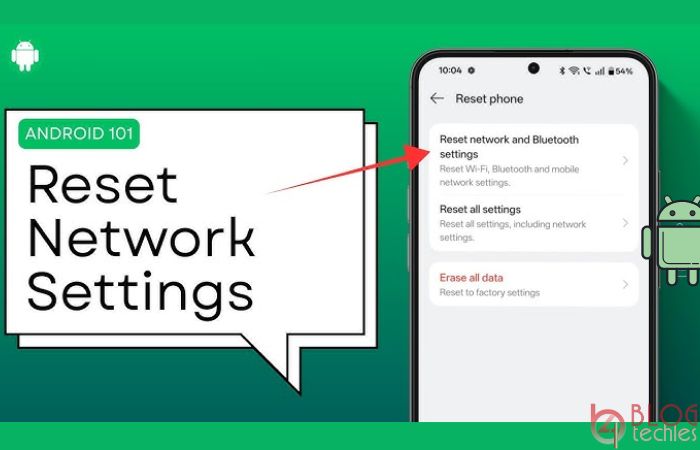
Resetting network settings should be used when troubleshooting connection issues that normal fixes cannot resolve.
Common Situations Where Reset Helps
- Wi-Fi won’t connect or keeps disconnecting
- Mobile data is not working
- Bluetooth devices won’t pair
- Internet is slow or unstable
- Phone shows “Connected but no internet”
Security experts and Android device manufacturers recommend network reset as one of the first advanced troubleshooting steps.
Network Problem Diagnosis Checklist
Before resetting, confirm you are experiencing real network issues:
- Wi-Fi fails to connect
- Mobile data doesn’t work
- Bluetooth disconnects frequently
- Internet is unstable
- Network errors appear frequently
If you checked multiple boxes, resetting network settings can help.
How to Reset Network Settings Android (Step-by-Step Instructions)
Follow these exact steps.
Step 1: Open the Settings App
Unlock your phone and open:
Settings
This is where all device configurations are controlled.
Step 2: Go to System Settings
Scroll down and tap:
System
On some phones, this may be called:
- General Management
- Additional Settings
This depends on your Android brand.
Step 3: Tap Reset Options
Inside System, tap:
Reset Options
This section contains different reset types.
Step 4: Select Reset Network Settings
Tap:
Reset Wi-Fi, Mobile & Bluetooth
This option resets all network configurations.
Step 5: Confirm Reset
Tap:
Reset Settings
Enter your PIN, password, or fingerprint if required.
Your phone will reset network settings instantly.
Reset Network Settings Path by Android Brand
Different Android brands place reset options in slightly different locations.
| Brand | Reset Path |
| Samsung | Settings → General Management → Reset |
| Google Pixel | Settings → System → Reset Options |
| Xiaomi | Settings → Connection & Sharing → Reset |
| OnePlus | Settings → System → Reset Options |
| Realme | Settings → Additional Settings → Reset |
| Vivo | Settings → System Management → Reset |
| Oppo | Settings → Additional Settings → Reset |
According to Samsung’s official support documentation, network reset restores all connection settings and resolves most network problems.
What Happens After Resetting Network Settings?
After resetting, your device removes all saved network connections.
Changes You Will Notice
- Wi-Fi networks are removed
- Bluetooth devices are disconnected
- VPN configurations are deleted
- Mobile network settings reset
Your phone will behave like a new device regarding connectivity.
What Network Reset Fixes vs What It Cannot Fix
| Problem | Network Reset Helps? |
| Wi-Fi not connecting | Yes |
| Bluetooth pairing issues | Yes |
| Mobile data problems | Yes |
| Slow internet | Often |
| SIM card damage | No |
| Hardware issues | No |
| Broken antenna | No |
Network reset fixes software problems, not hardware failures.
What to Do After Resetting Network Settings
After reset, follow these steps to restore connectivity.
Post-Reset Checklist
- Reconnect to Wi-Fi
- Enter Wi-Fi password
- Reconnect Bluetooth devices
- Enable mobile data
- Restart your phone
This ensures proper network functionality.
Alternative Fixes Before Resetting Network Settings
Try these basic troubleshooting steps first.
Basic Fix Checklist
- Restart your phone
- Turn Airplane mode ON and OFF
- Restart your Wi-Fi router
- Update Android software
- Remove and reinsert SIM card
If these steps fail, network reset is recommended.
Reset Network Settings vs Factory Reset
Many users confuse these two reset options.
| Feature | Network Reset | Factory Reset |
| Deletes apps | No | Yes |
| Deletes photos | No | Yes |
| Fixes network problems | Yes | Yes |
| Removes malware | No | Yes |
| Risk level | Low | High |
| Recommended first | Yes | No |
Network reset is safer and should always be tried first.
Why Network Settings Become Corrupted
Network configurations can break due to several reasons.
Common Causes
- Android system updates
- Incorrect manual settings
- Network conflicts
- Software bugs
- Malware interference
Google’s Android troubleshooting documentation confirms corrupted network settings are a common cause of connectivity issues.
Resetting removes corrupted settings and restores default values.
Is Resetting Network Settings Safe?
Yes. Resetting network settings is completely safe.
It does NOT delete:
- Photos
- Videos
- Apps
- Contacts
- Files
It only resets connectivity configurations.
This makes it a preferred troubleshooting method.
How Often Should You Reset Network Settings?
You should only reset network settings when needed.
Do NOT reset frequently unless problems occur.
Resetting unnecessarily requires reconnecting all networks again.
How to Prevent Network Problems on Android
Preventing problems is better than fixing them.
Android Network Safety Checklist
- Keep Android updated
- Avoid installing unknown apps
- Restart phone regularly
- Avoid unsafe public Wi-Fi
- Install trusted apps only
These steps help maintain stable network performance.
When Reset Network Settings Does NOT Work
If resetting network settings doesn’t fix the problem, the issue may be:
- SIM card damage
- Carrier problems
- Hardware failure
- Router problems
In these cases, contact your carrier or service center.
Final Thoughts
Knowing how to reset network settings android is essential for fixing Wi-Fi, Bluetooth, and mobile data problems quickly and safely. This simple process restores default network configurations and resolves most connectivity issues.
It’s one of the safest and most recommended troubleshooting steps by Android manufacturers and security experts.
Always try network reset before factory reset.
FAQ: How to Reset Network Settings Android
1. Does resetting network settings delete everything?
No. It only deletes network configurations, not personal files.
2. Will I lose Wi-Fi passwords?
Yes. Saved Wi-Fi passwords are removed.
3. Is resetting network settings safe?
Yes. It is completely safe.
4. Does it fix mobile data problems?
Yes. It often fixes mobile data issues.
5. Does reset remove Bluetooth devices?
Yes. You must reconnect them.
6. Does it remove virus?
No. It only resets network settings.
7. How long does reset take?
Less than 1 minute.
8. Should I factory reset instead?
Only if network reset does not work.